APIs
Once you have a connection, you can surface IBM i functionality as a REST API. The Hub supports three API types:
| API type | Purpose | Connection |
|---|---|---|
| Program Call | Calls an existing program on the IBM i | Native Connection |
| Data API | Runs an SQL statement or stored procedure call | Native Connection |
| RPA Call | Runs a screen automation script | Screen Automation Connection |
API list
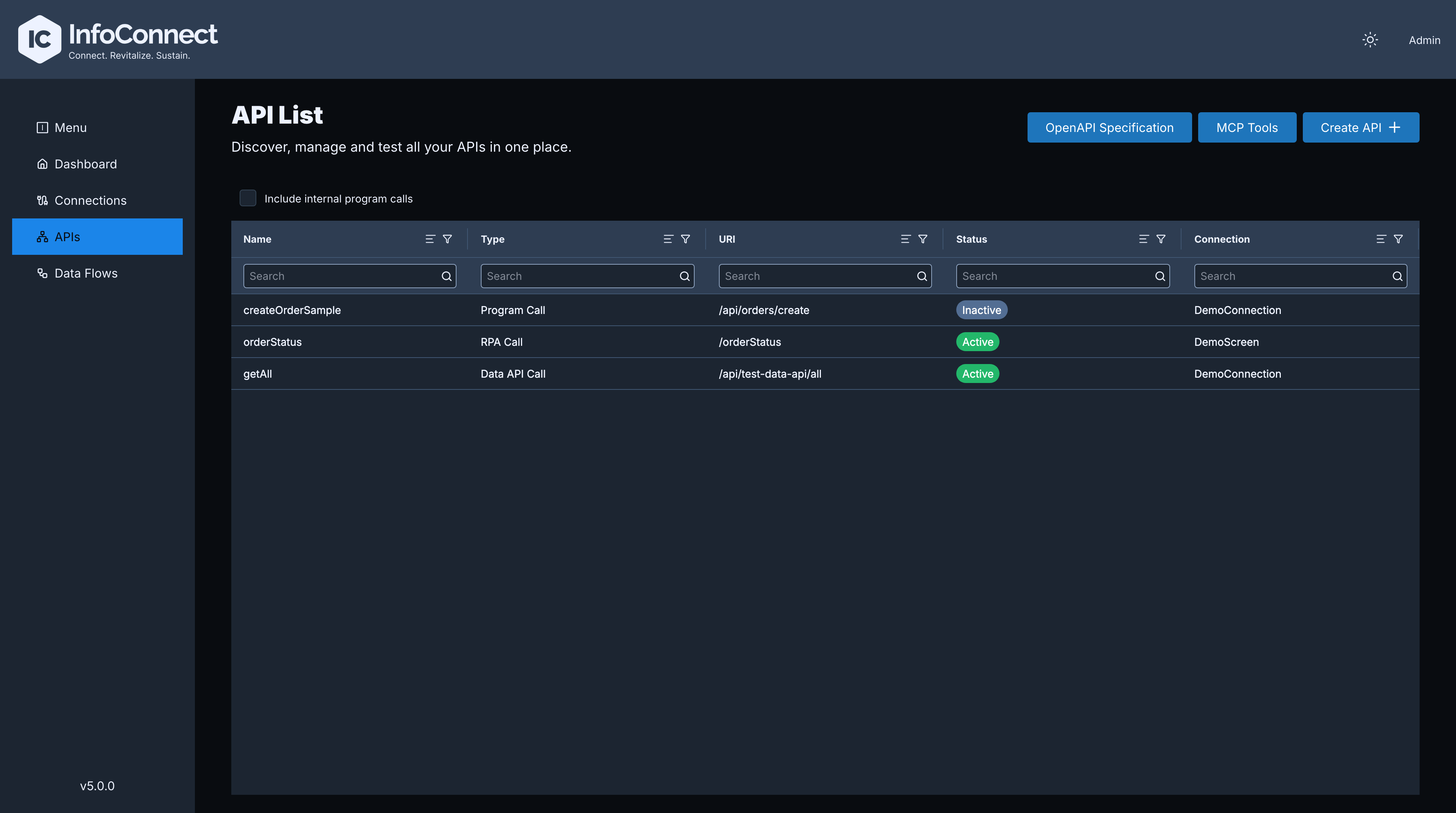
The APIs page (API List) shows all your APIs in one table. Each column has a filter field.
| Column | Description |
|---|---|
| Name | API name |
| Type | Program Call, RPA Call or Data API Call |
| URI | URI of the API |
| Status | Status badge |
| Connection | Connection used by the API |
The page has the following controls:
| Control | Description |
|---|---|
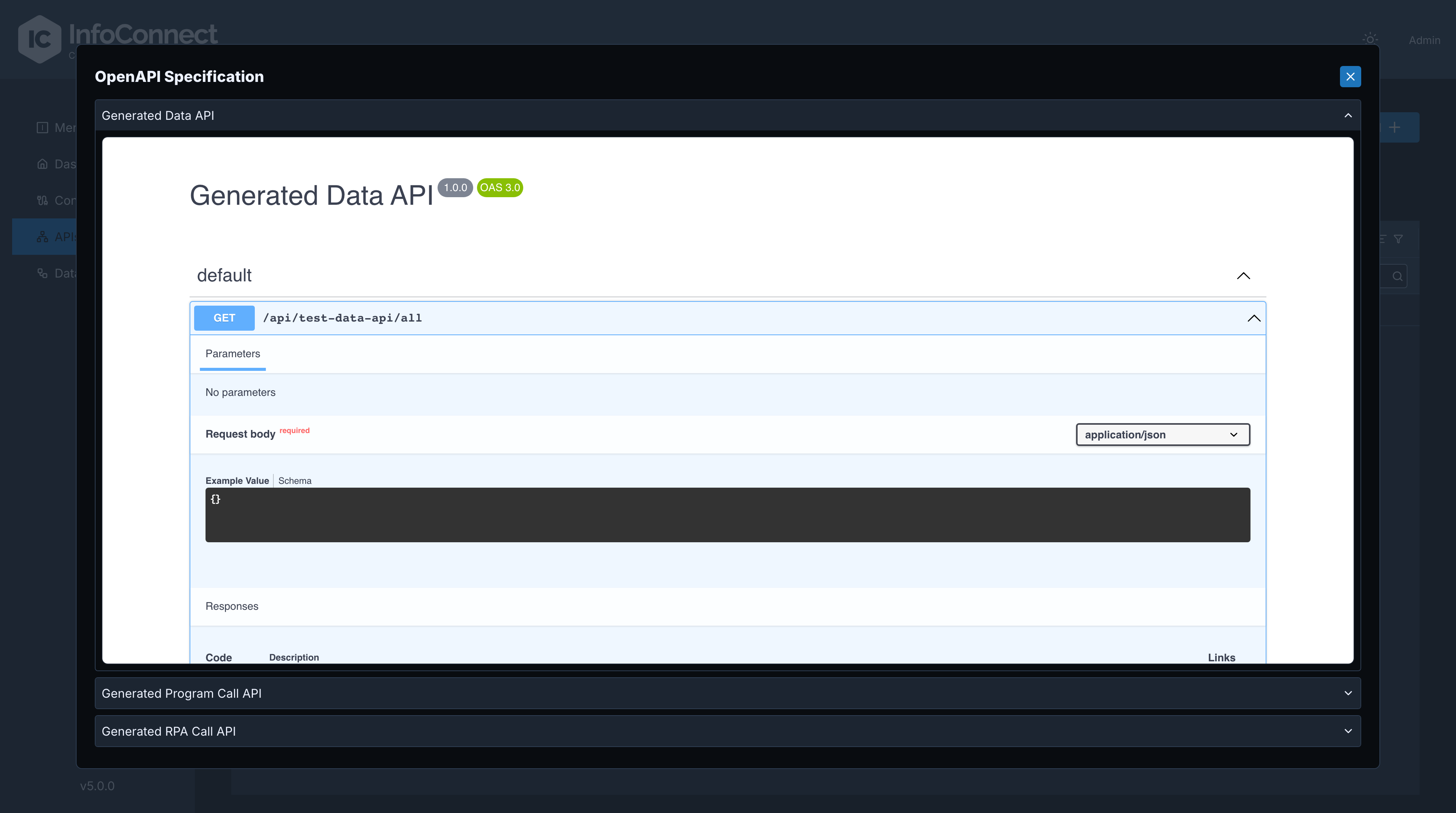
| OpenAPI Specification | Opens a dialog with the OpenAPI (Swagger) view of your APIs, one entry per API type. If there are no APIs, the dialog shows No API specifications are available yet. The Try it out button is disabled in this dialog |
| MCP Tools | Opens the MCP Tools page with the MCP tools provided by the Hub. Click Reload Tools to refresh the list. See AI and MCP |
| Create API | Starts the creation of a new API, see Creating an API |
| Include internal program calls | Checkbox. Controls whether internal program calls are included in the list |
If you have no APIs yet, the page shows You haven't added any APIs yet.
Status badges are Active (green), Inactive (grey) and Failed (red). Inactive APIs keep their definition but cannot be executed, see Managing Hub APIs.
Creating an API
To create an API:
- In the navigation bar, click APIs.
- Click Create API.
-
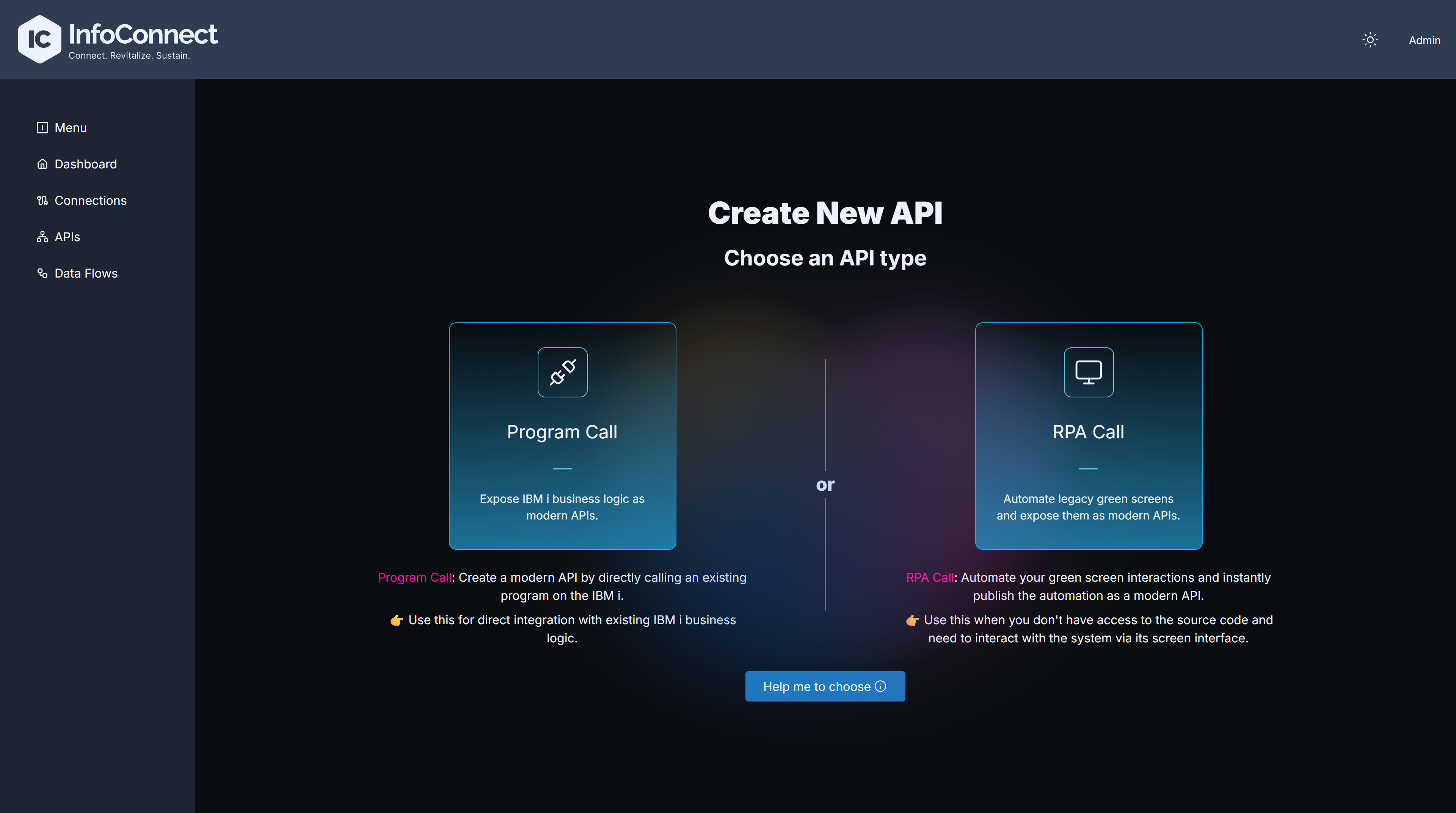
On the Choose an API type screen, click Create Program Call, Create Data API or Create RPA Call, and select the connection to use. Use a Native Connection for Program Calls and Data APIs, and a Screen Automation Connection for RPA Calls.
Request validation and parameter mapping
The Program Call, Data API and RPA Call forms have a Schema validation checkbox, cleared by default. When it is checked, the Hub validates the values of an incoming request against the parameter definitions before it calls the IBM i. If the request is not valid, the Hub returns an HTTP 400 error that lists all problems and does not call the IBM i. For the validation rules, see API Parameters Configuration.
Each input parameter has a Source field name that tells the Hub where the value comes from in the incoming HTTP request:
| API type | Source field name |
|---|---|
| Program Call | Required for IN and INOUT parameters |
| RPA Call | Required for IN parameters |
| Data API | Source Field Name is required except for OUT variables |
Accepted forms are a plain name (orderID), $['orderID'], and the prefixed forms message.body.x, message.headers.x, message.uriParams.x and message.queryParams.x. A name without a prefix is read from the request body. See API Parameters Configuration for details and examples.
API types
Each API type has its own form:
API actions
Click an API in the API List to open its page. After you create an API, you can execute it from this page to test it. The Actions bar contains:
| Button | Description |
|---|---|
| OpenAPI Specification | Opens a dialog with the OpenAPI specification of this API |
| Show MCP tool details | Opens the MCP tool details dialog for this API |
| Activate / Deactivate | Enables or disables execution of the API |
| Execute Program Call, Execute RPA Call, Execute Data API | Opens the execute screen, see Executing APIs |
| Remove | Deletes the API after the delete confirmation |

To activate or deactivate an API:
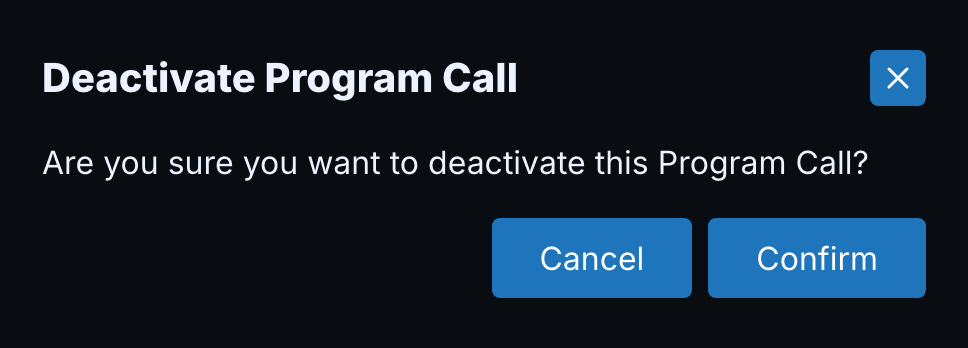
- Click Activate or Deactivate. A dialog titled Activate Program Call or Deactivate Program Call opens. For the other types the title contains RPA Call or Data API.
- Read the question
Are you sure you want to activate this Program Call?(ordeactivate). - Click Confirm to apply the change or Cancel to leave the API as it is.
An API in the Failed state can be deactivated. For the effect of each state, see Managing Hub APIs.
If the status is Failed, a red Error: block with a short preview of the error is shown. Click it to open the Execution Error dialog with the full text.
In an inactive API, the Execute button is disabled. Its tooltip shows one of the following texts:
Program call is inactive. Activate it to execute this call.RPA call is inactive. Activate it to execute this call.Data API is inactive. Activate it to enable execution.