Executing APIs
To test an API from the UI:
- Open the APIs list and click your API.
- Click Execute Program Call, Execute Data API or Execute RPA Call. The button is disabled while the API is inactive, see API actions.
- Provide the input values.
- Click Execute.
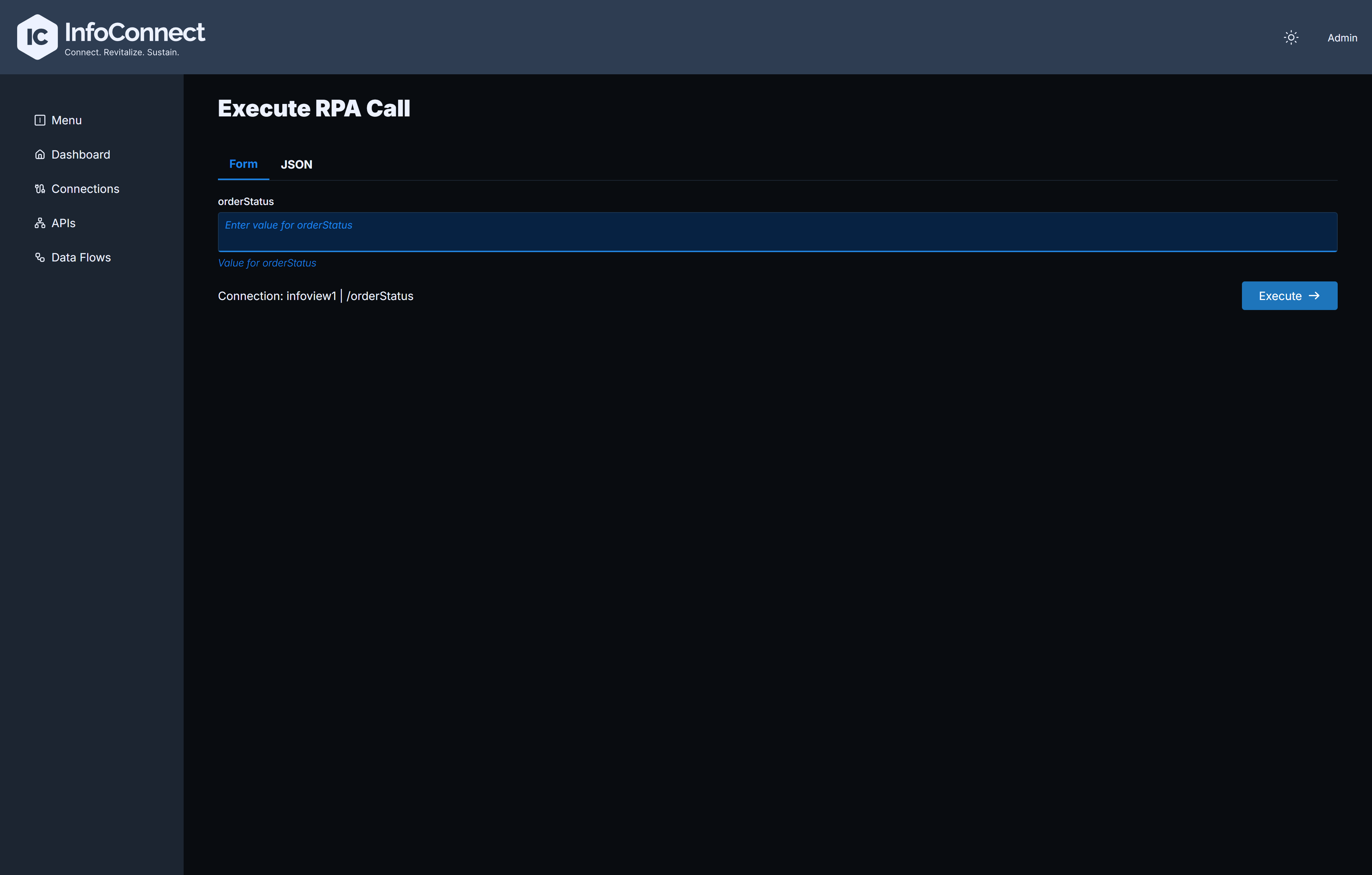
The footer of the execute screen shows the connection and URI. The response is displayed in the Execution Result section with the HTTP status, the response time (tooltip Response time, in ms) and the response body as formatted JSON.
Execute a Program Call
The execute screen provides a text field for every IN or INOUT parameter, labelled with the parameter name. OUT parameters are not shown. You can also switch to the JSON tab to provide the entire payload at once. The JSON uses the Source field name of each parameter and is checked when you leave the text box.
- For a
STRUCTUREparameter, the nested elements are shown in a framed block titled with the parameter name. If its Count is greater than 1, the block contains one sub-block per item: Item #1, Item #2 and so on. - If the program has no parameters, the screen shows
Program Call does not have any parameters.
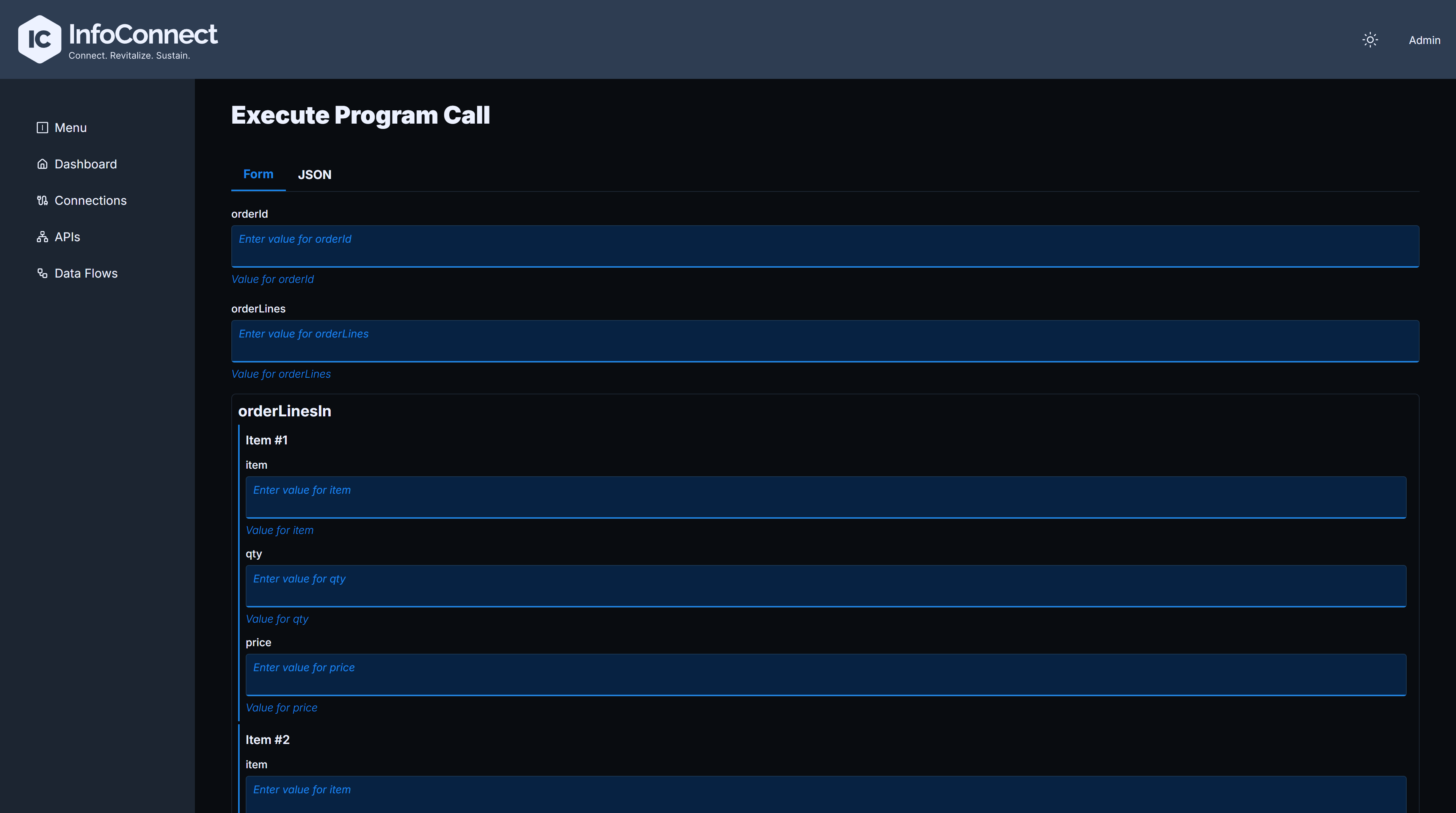
Sample JSON payload for execution
You can also execute a Program Call with the Admin API, see API Reference.
Execute a Data API
The execute screen is a form. It shows a text field for every variable whose usage is not OUT, labelled with the variable name. The request is sent with the HTTP method configured for the Data API.
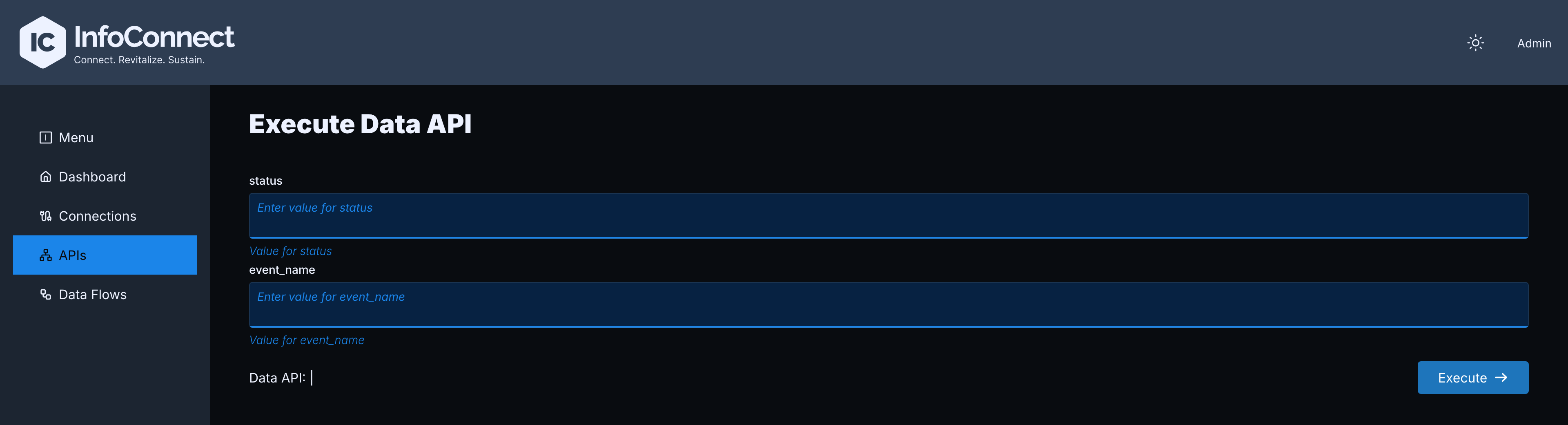
Sample request body (values to enter in the form)
You can also execute a Data API with the Admin API, see API Reference.
Execute an RPA Call
The execute screen has the same Form and JSON tabs as for a Program Call. It shows fields for the In parameters, including the input variables defined in your Key String. Out parameters are not shown. If the call has no parameters, the screen shows RPA Call does not have any parameters.
You can also execute an RPA Call with the Admin API, see RPA API Reference.