Operations and maintenance
This page covers the InfoCDC commands, workflow monitoring, and the regular maintenance of the staging table. Run the commands with the INFOCDCCOM library in the library list, or qualify them with the library, for example INFOCDCCOM/CDCSTART.
InfoCDC commands
CDCSTART
Starts the workflows of a data environment. Use it in the auto-start job, in a job scheduler entry, or after maintenance. See Installation.
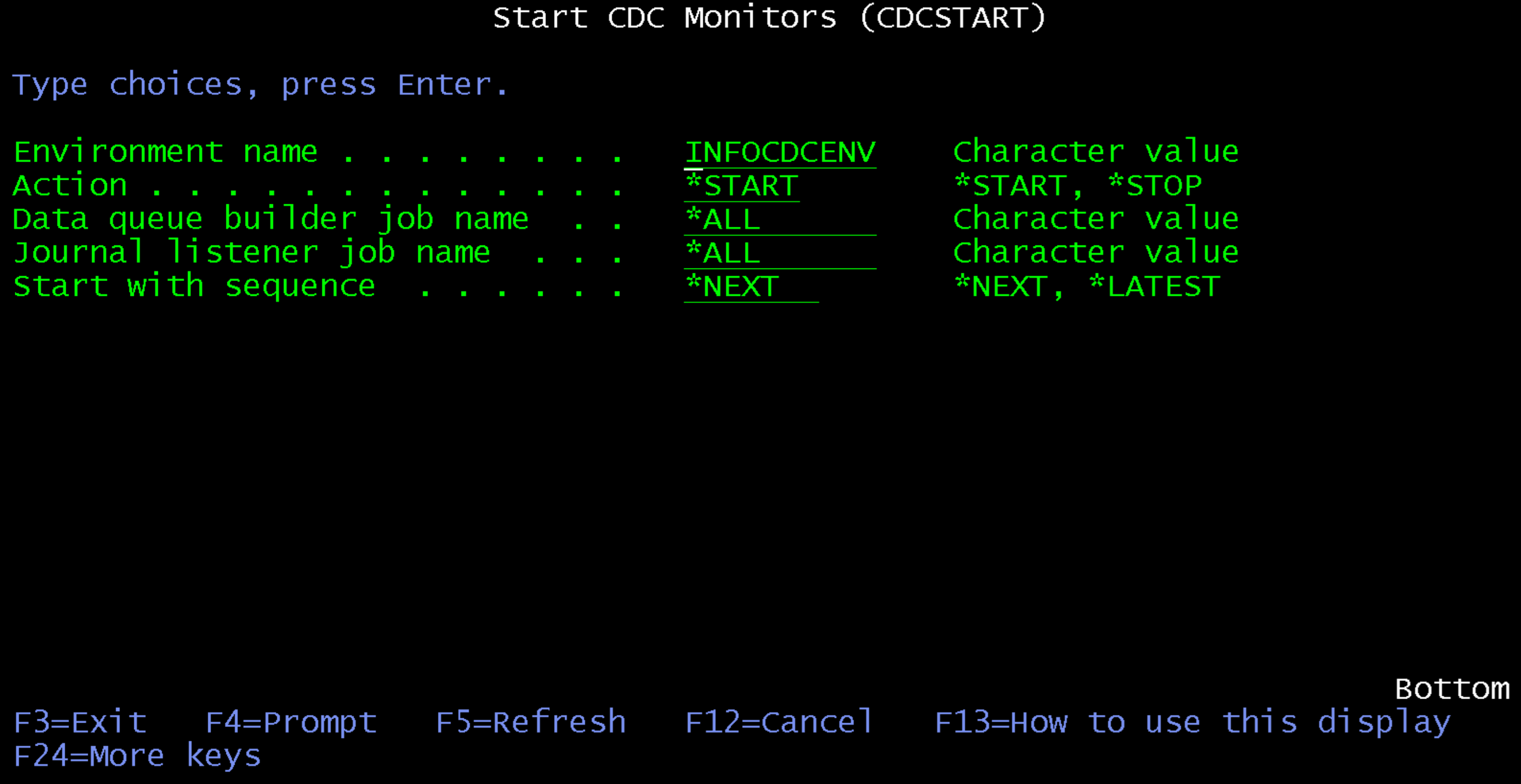
| Parameter | Values | Description |
|---|---|---|
| Environment name | Name | The data environment of the workflows. |
| Action | *START, *STOP |
Starts or stops the workflows. |
| Data queue builder job name | *ALL or a job name |
Limits the command to one workflow. |
| Journal listener job name | *ALL or a job name |
Limits the command to one workflow. |
| Start with sequence | *NEXT, *LATEST |
*NEXT continues with the entry after the last processed one, so no changes are lost. *LATEST starts from the latest journal entry and skips the entries in between. |
CDCSTOP
Stops the workflows of a data environment.
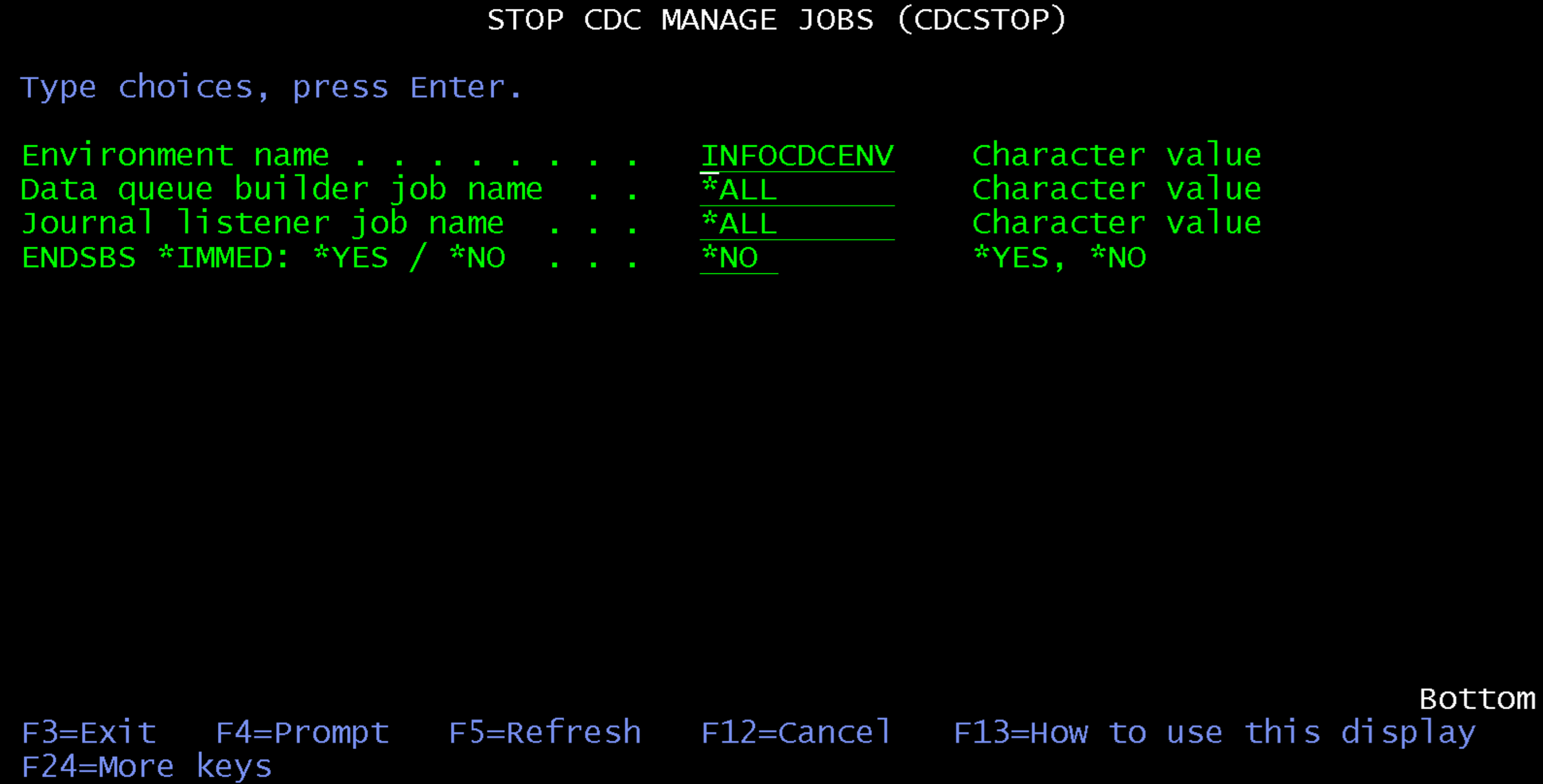
| Parameter | Values | Description |
|---|---|---|
| Environment name | Name | The data environment of the workflows. |
| Data queue builder job name | *ALL or a job name |
Limits the command to one workflow. |
| Journal listener job name | *ALL or a job name |
Limits the command to one workflow. |
| ENDSBS *IMMED | *YES, *NO |
*NO ends the workflows in a controlled way. *YES ends the CDC subsystem with ENDSBS OPTION(*IMMED). |
CDCADDTBL
Adds a table to a data environment without the Work with Tables screen, for example from a script. The table must have a primary key or a unique key constraint, and the workflow of the journal that the table is journaled to must be stopped.
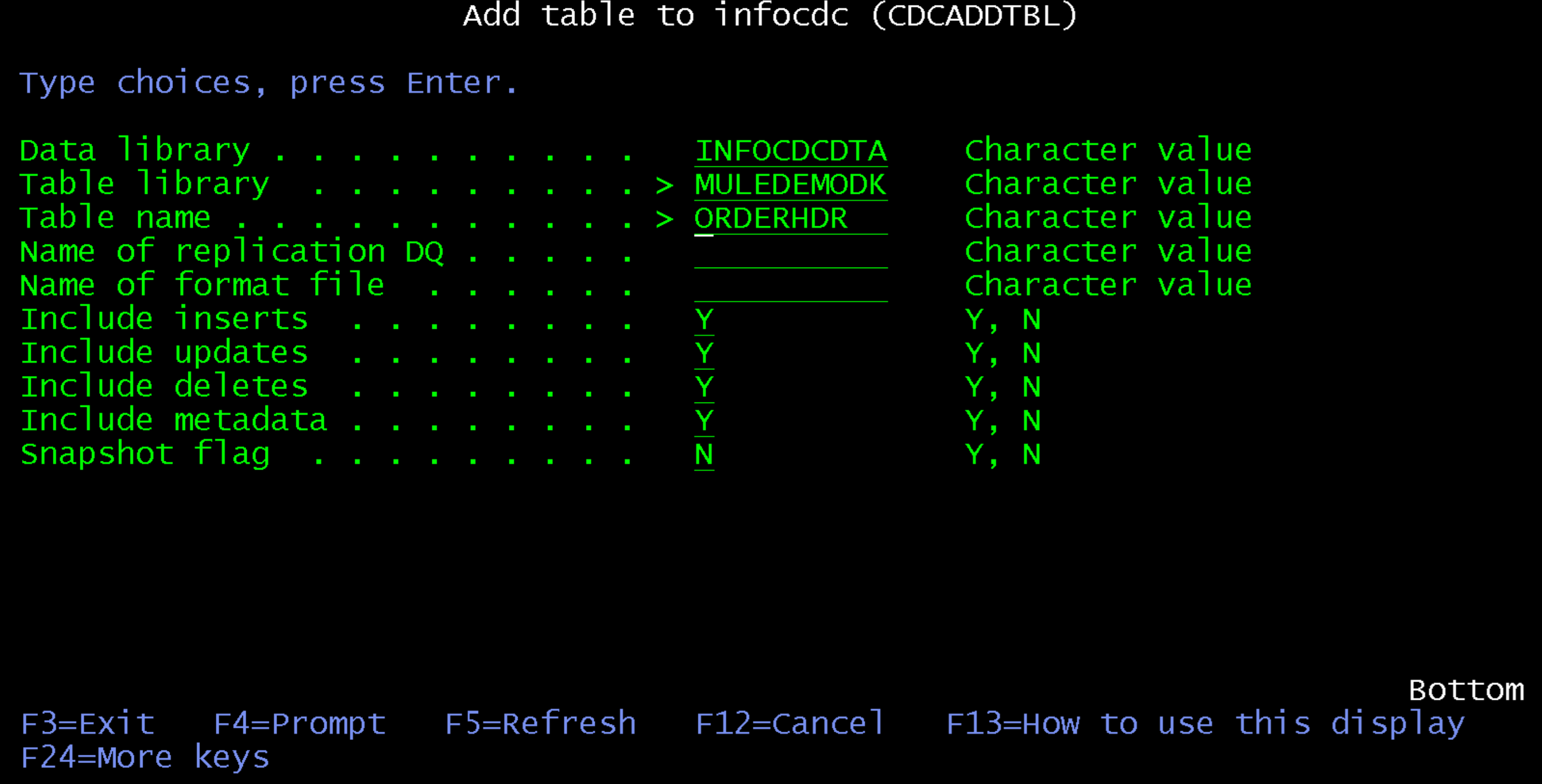
| Parameter | Values | Description |
|---|---|---|
| Data library | Name | The data library of the data environment, for example INFOCDCDTA. |
| Table library | Name | The library of the table. |
| Table name | Name | The table to add. |
| Name of replication DQ | Name or blank | Blank lets InfoCDC pick the next free name. |
| Name of format file | Name or blank | Blank lets InfoCDC pick the next free name. |
| Include inserts | Y, N |
Sends insert operations. |
| Include updates | Y, N |
Sends update operations. |
| Include deletes | Y, N |
Sends delete operations. |
| Include metadata | Y, N |
Adds the journal entry metadata to each message. |
| Snapshot flag | Y, N |
Requests a snapshot on the next run. See Snapshot. |
Workflow monitoring
InfoCDC can monitor the workflows and data queues and notify your administrators when a workflow is in error or a data queue grows too fast. To configure it, press F11 on the Workflow Inquiry screen. Press F7 to start the monitoring process and F8 to stop it.
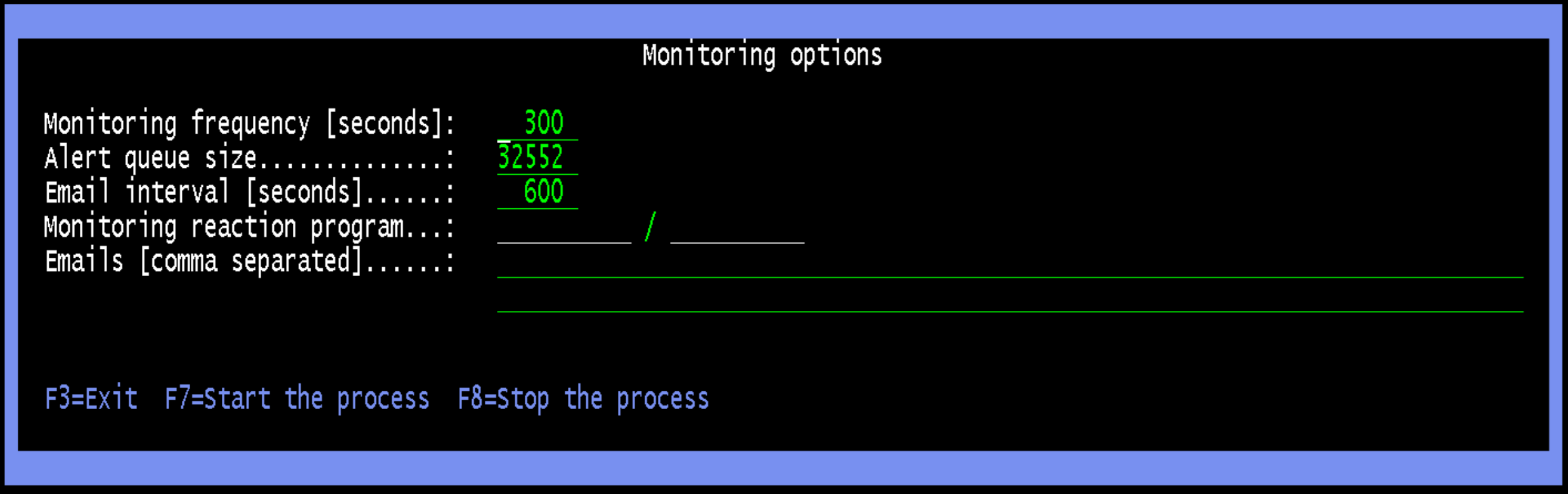
| Setting | Description |
|---|---|
| Monitoring frequency [seconds] | How often the monitoring process checks the workflows and data queues. |
| Alert queue size | The number of data queue entries that triggers a notification. |
| Email interval [seconds] | The minimum time between two notification emails. |
| Monitoring reaction program | Optional library and name of your own program that sends the notification. |
| Emails [comma separated] | The addresses that receive the notifications. |
The monitoring reaction program receives these parameters:
i_emailAddress   char(100) dim(10)
i_emailSubject   char(100)
i_emailContent   char(10000)
i_attachmentPath char(200)
Staging table maintenance
InfoCDC keeps an entry for each processed change in the staging table of the data environment, together with its acknowledgement status (see Acknowledgements and guaranteed delivery). The table grows with every change, so a busy system needs regular maintenance:
- Purge the entries that are no longer needed, so that the table does not keep growing.
- Reorganize the table after a purge. Deleted records keep using disk space until the table is reorganized.
Purging the staging table
Schedule the purge as a job scheduler entry or as a Robot or advanced job scheduler task, for example daily outside the busiest hours. Keep the entries at least as long as a consumer can be offline, so that entries that are still ACK_PENDING are not removed.
Reorganizing the staging table
Reorganize the table with the IBM i RGZPFM command after a purge, for example weekly.
With ALWCANCEL(*YES) and LOCK(*SHRUPD) the reorganization runs while the workflows keep writing to the table. This requires the table to be journaled. Otherwise, stop the workflows with CDCSTOP, run RGZPFM with the default options, and start the workflows again with CDCSTART.