Connections
A connection is a configured link to an IBM i system. It stores the endpoint, type, license details and other properties needed to communicate with the system.
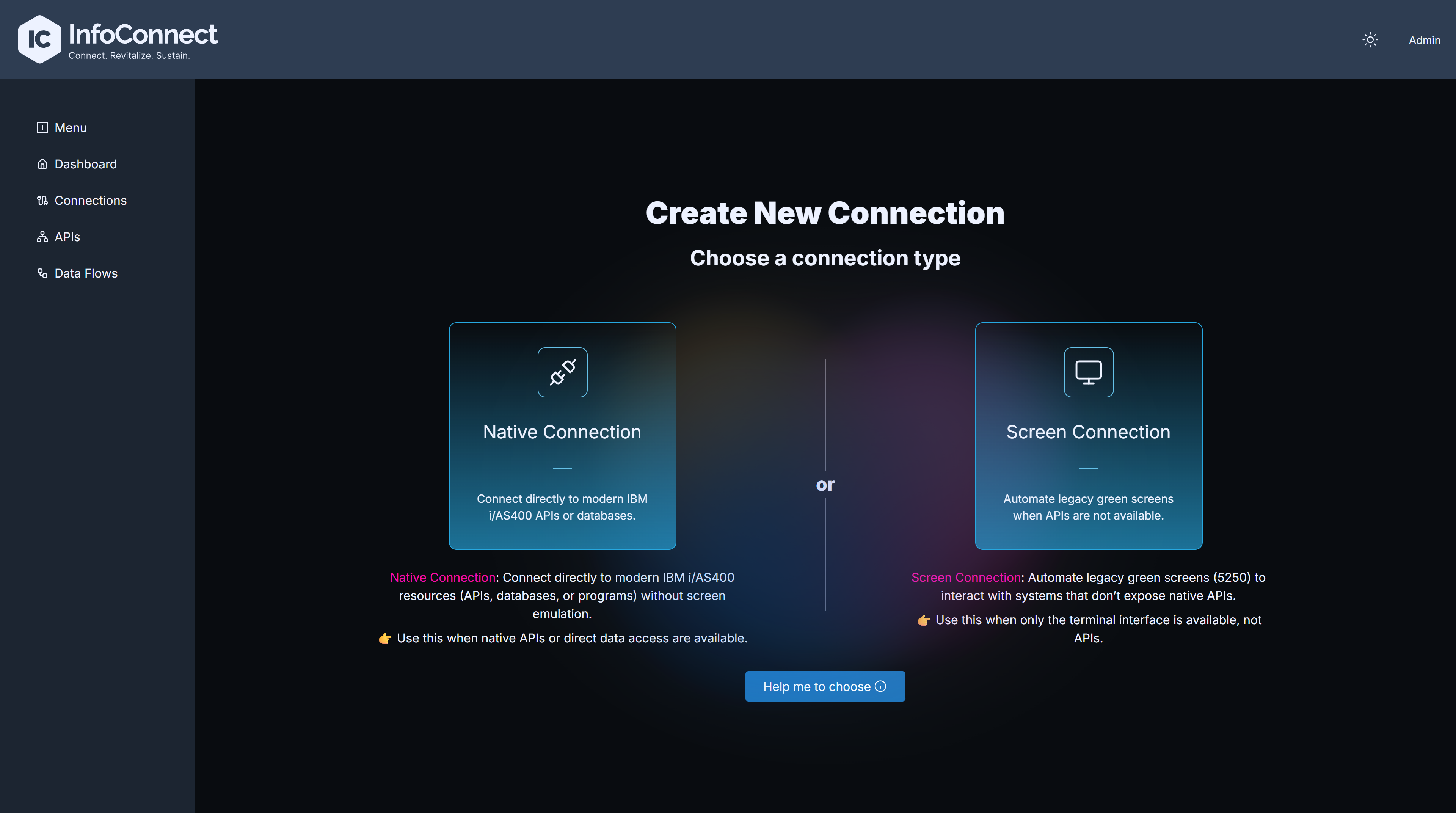
You can create two types of connections:
| Type | Use it for |
|---|---|
| Native Connection | Direct access to IBM i resources such as programs and databases. This is the preferred method when you have direct access to the business logic of the system |
| Screen Automation Connection | Automating "green-screen" terminal interactions. Use it when you can interact with an application only through its 5250 terminal interface |
To create a connection:
- In the navigation bar, click Connections.
- Click Create New Connection.
-
Choose Native Connection or Screen Automation Connection. The creation form opens.
The Connections list shows the columns Name, Type (Native/Screen), Status, Endpoint, # of APIs and # of Data Flows. Click a connection to open its page, see Connection page.
Native Connection form
The form is organized into accordions:
| Accordion | Content |
|---|---|
| Main Configuration | Connection details, see the table below |
| Connection Pool Config | How many connections are kept open and for how long. The default values suit most use cases |
| Socket Config | Advanced network settings |
| Tls Config | Shown only if you select Secure connection. Specify the truststore file and its location |
| License Management | Location of your license file. The Hub can load it from sources such as S3, FTP or a local file path |
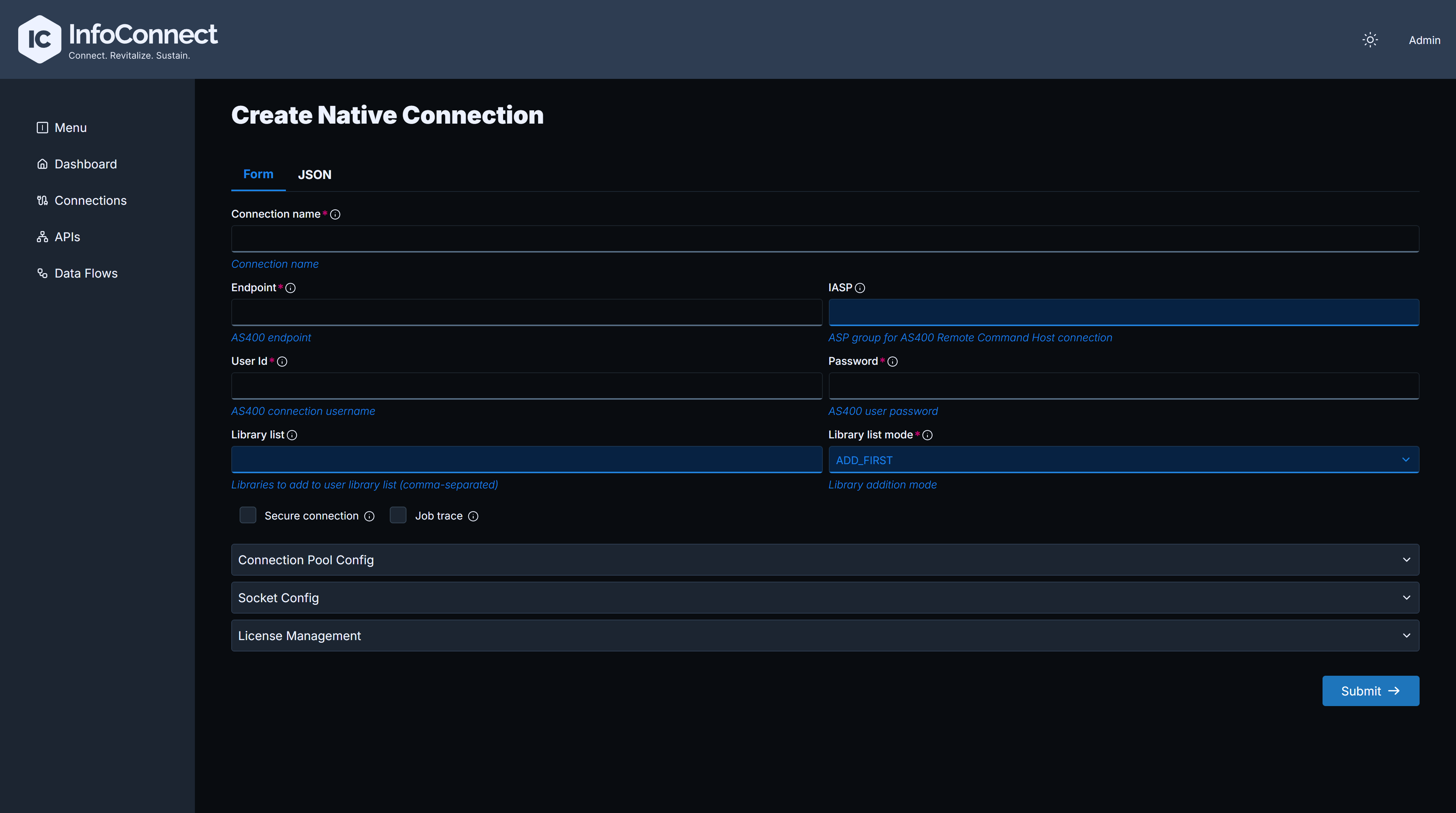
Main Configuration fields
| Field | Notes |
|---|---|
| Connection name | Required. Letters, digits and hyphens only (Connection name must not contain special characters) |
| Endpoint | Host name or address of the IBM i system |
| IASP | Optional independent auxiliary storage pool |
| User Id, Password | On update, leave Password empty to keep the stored password |
| Library list | Comma-separated list of libraries |
| Library list mode | ADD_FIRST, ADD_LAST or REPLACE |
| Secure connection | Checkbox. Enables the Tls Config accordion |
| Job trace | Checkbox |
| Preview JDBC URL | Read-only. Shows the JDBC URL that Data APIs use for this connection |
| Override JDBC URL | Checkbox. When selected, the JDBC URL override field appears |
JDBC URL for Data APIs
By default, the Hub builds the JDBC URL for Data APIs from the connection settings (endpoint, secure connection, IASP and library list). The result is shown in Preview JDBC URL. To use your own URL, select Override JDBC URL and enter it in JDBC URL override:
- The value is required when the checkbox is selected (
JDBC URL override is required). - It must start with
jdbc:as400:(JDBC URL override must start with jdbc:as400:). - It replaces the automatically built connection string and is used only by Data APIs.

License Management
License file protocol offers AWS S3, File, FTP, HTTP, HTTPS, Azure Storage and None. License file name is required for every protocol except None. The protocol you select determines the other fields:
| Protocol | Fields |
|---|---|
| File | File Path |
| AWS S3 | S3 Bucket, S3 Region, S3 Access Key, S3 Secret Key |
| FTP | FTP host, FTP dir path, FTP username, FTP password |
| HTTP, HTTPS | HTTP url, HTTP dir path, HTTP username, HTTP Password |
| Azure Storage | Connection String, Bucket name |
| None | No license file is configured. The License file name field is hidden |
A connection without a valid license has limited access to IBM i, see License and connection status.

JSON tab
In addition to the common behaviour of the JSON tab:
- When you switch from Form to JSON, the JSON is generated from the form (secrets are encrypted) and the first validation error, if any, is shown under the text box.
- The content of the text box is applied to the form when you leave the text box.
- When you click Submit on the JSON tab, the JSON is sent exactly as typed. The UI checks only the JSON syntax; the Hub validates the content. On the Form tab, the form validation applies.
- Sensitive fields such as
passwordandtruststorePasswordmust be encrypted values in the JSON, see Encrypting secrets.
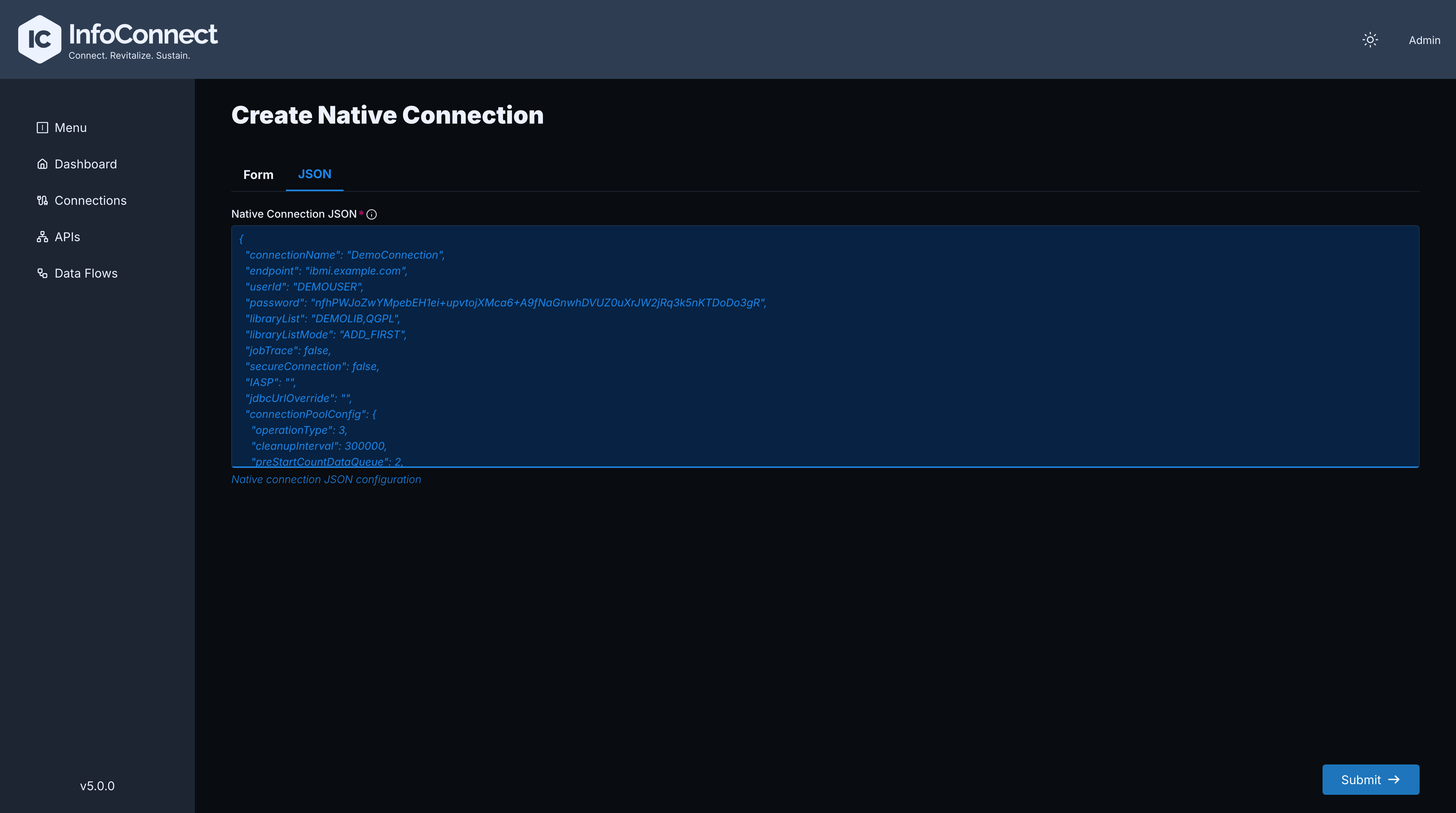
Sample JSON configuration for a Native Connection
{
  "connectionName": "NATIVE",
  "endpoint": "my-IBMi-server-name",
  "userId": "MYUSERID",
  "password": "encrypted-password",
  "IASP": "",
  "libraryList": "CDCCOMD321,CDCDTAD321,HUBDEMOS",
  "jobTrace": false,
  "secureConnection": false,

  "connectionPoolConfig": {
    "operationType": 0,
    "preStartCountDataQueue": 0,
    "preStartCountCommand": 5,
    "maxConnections": 10,
    "maxInactivity": 3600000,
    "maxLifeTime": 86400000,
    "maxUseCount": -1,
    "maxUseTime": -1,
    "cleanupInterval": 300000,
    "pretestConnections": false,
    "runMaintenance": true,
    "threadUsed": true,
    "CCSID": 0
  },

  "socketConfig": {
    "keepAlive": true,
    "loginTimeout": 300000,
    "receiveBufferSize": 1000,
    "sendBufferSize": 1000,
    "soLinger": 0,
    "soTimeout": 300000,
    "tcpNoDelay": true
  },

  "transportConfig": {
    "licenseFileProtocol": "AZURE_STORAGE",
    "licenseFileName": "as400-license_new.lic",
    "truststoreFileProtocol": "AZURE_STORAGE",
    "AZURE_STORAGE": {
      "connectionString": "myAzureStorageConnectionString",
      "bucketName": "bucketName"
    }
  }
}
You can also create a Native Connection with the Admin API, see API Reference.
Screen Automation Connection form
Use this form to define a connection for automating terminal sessions.
| Field | Notes |
|---|---|
| Connection name, Host, Port, Username, Password | Standard connection details |
| Username X Position, Username Y Position, Password X Position, Password Y Position | Row and column coordinates on the login screen where the username and password are typed |
| Initial Key String | Sequence of commands and keystrokes (for example [enter], [tab], myCommand) that runs automatically every time a new session starts. Use it to navigate to a specific starting screen after login |
| SSL Type | TLS for a secure connection, NONE for an insecure one |
| Reconnection attempts, Time between attempts, Debug mode | Additional connection settings |
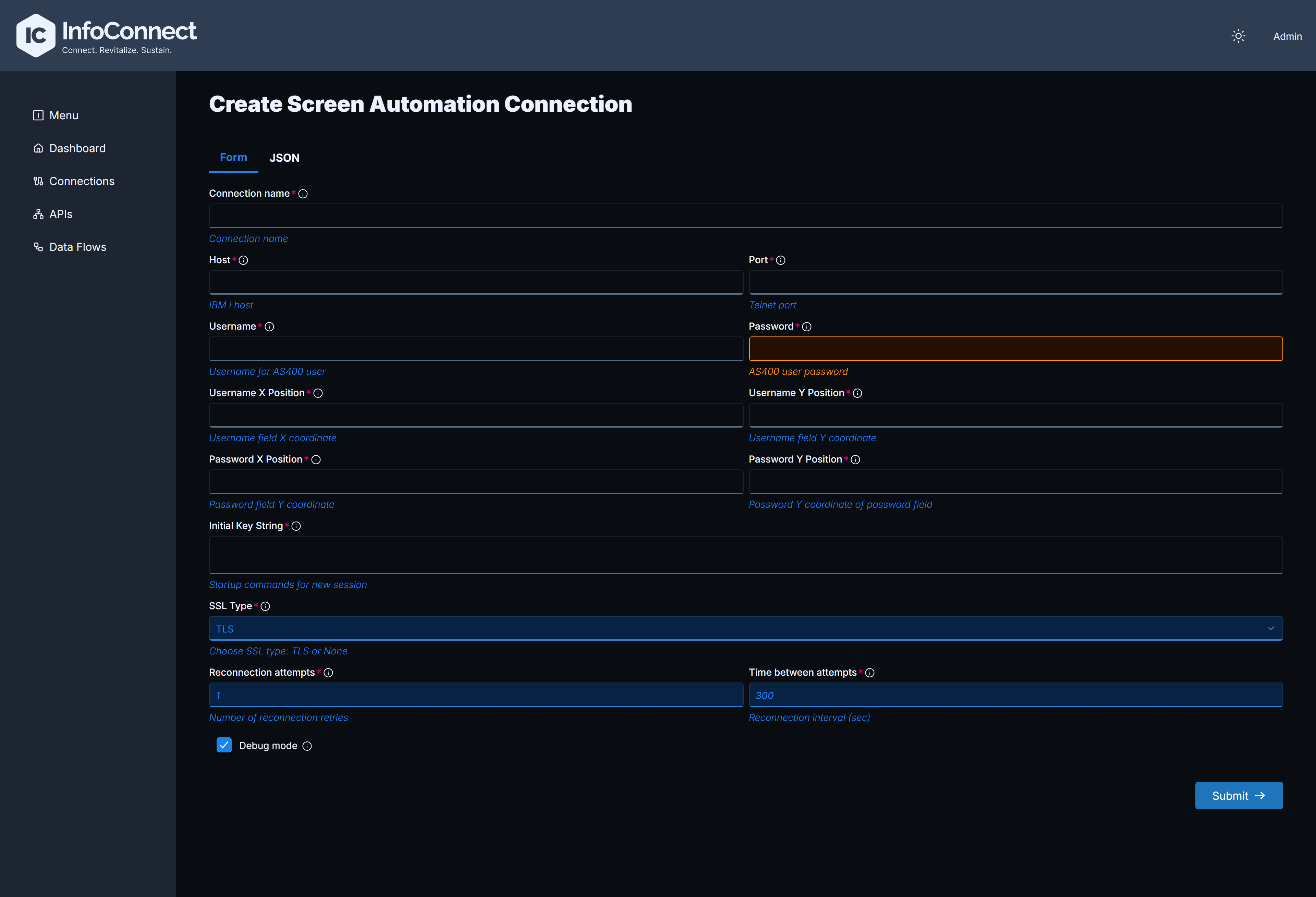
You can also create a Screen Automation Connection with the Admin API, see API Reference.
Connection page
The top bar of a connection page shows:
- The connection status badge (Active or Inactive) and the Stop / Start button, which closes or re-opens the connection.
- Remove, which deletes the connection, see Removing a connection.
- The counters APIs (with a Create API link) and Data Flows (with a Create Data Flow link). They show how many APIs and Data Flows use the connection.
The page of a Screen Automation Connection has the same status badge, Stop / Start and Remove buttons and an APIs counter with a Create API link.
The API and Data Flow lists and counters refresh immediately after you create, update or delete an object.

Removing a connection
Warning
Removing a Native Connection also removes all Data Flows, Program Calls and Data APIs that use this connection. Before you click Yes, check the APIs and Data Flows counters on the connection page to see how many objects are affected.
After you confirm, the UI displays Connection: '<name>' deleted. and returns to the Connections list.
License and connection status
The connection status shows whether the license of the connection is valid:
- If the license is valid, the connection status is ACTIVE.
- If the license is missing or invalid, the status is WARNING or FAILED, and the message explains that the license is missing or invalid. Saving a connection without a valid license can be rejected with the error
License isn't valid. - A FAILED connection cannot be started or stopped. Fix the license settings in License Management and submit the connection again.